A complete informational guide to game launcher interfaces, library organization, performance settings, and personalization features on Android devices.
Introduction
What Is an Android Game Launcher?
An Android game launcher is a specialized application that replaces or supplements the standard home screen, offering a dedicated interface optimized for managing and accessing video games. Unlike general-purpose launchers, game launchers focus on displaying installed games, providing quick launch shortcuts, and offering gaming-specific settings.
They serve as the entry point to a player's entire game collection, making it easy to find, organize, and start any game without navigating through a cluttered app drawer.
Dedicated game-focused home screen replacement
Automatic detection of installed game apps
Quick-launch tiles for frequently played games
Separation of gaming apps from utility apps
Core Topics
Game Launcher Feature Areas
Explore the key feature categories that define modern Android game launchers.
Android game launchers are purpose-built applications designed to centralize access to mobile games. They typically scan the device for installed game packages, display them in a visually rich grid or list format, and provide features such as playtime tracking, game sorting, and quick-access shortcuts. Unlike stock launchers, game launchers are optimized for the gaming experience, often offering larger tiles, cover art, and gaming-specific widgets.
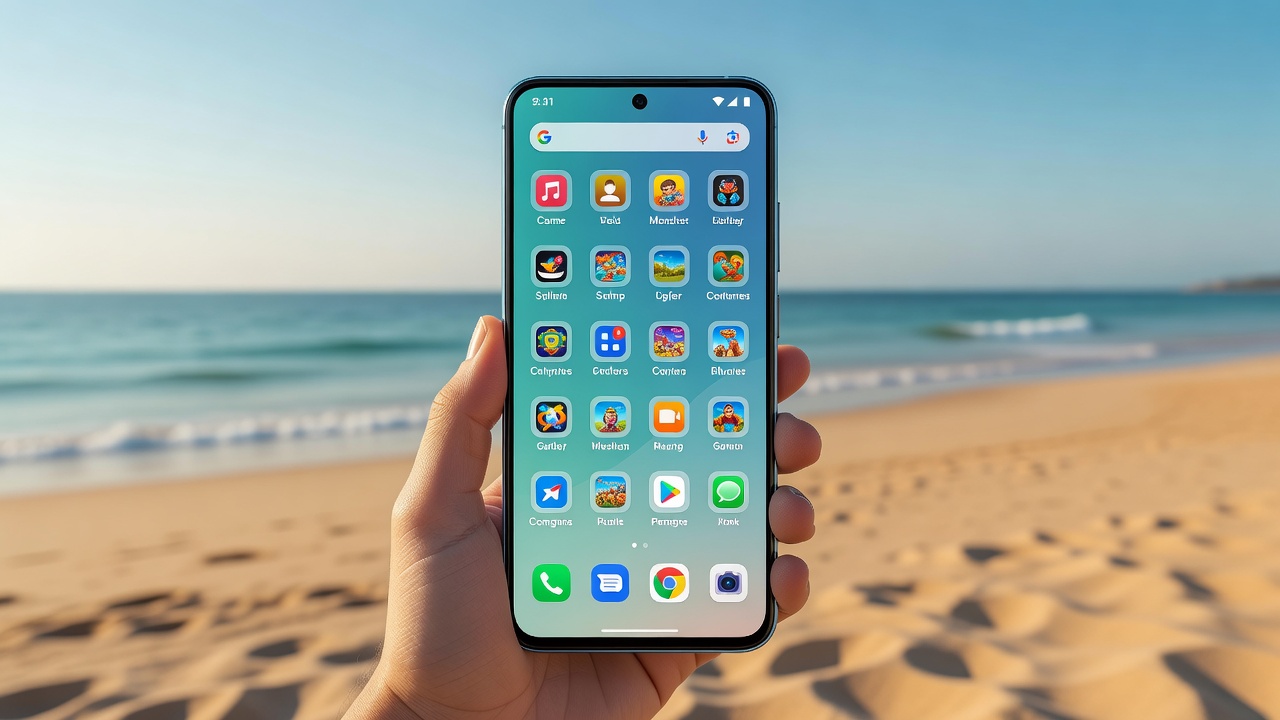
The interface of a game launcher is its most visible feature. Modern launchers typically offer grid-based layouts with game cover art, list views for text-based browsing, and carousel displays for featured or recently played titles. Interface elements include search bars, genre filters, sort controls, and category tabs. Many launchers also support dark mode, custom background images, and font size adjustments for accessibility.
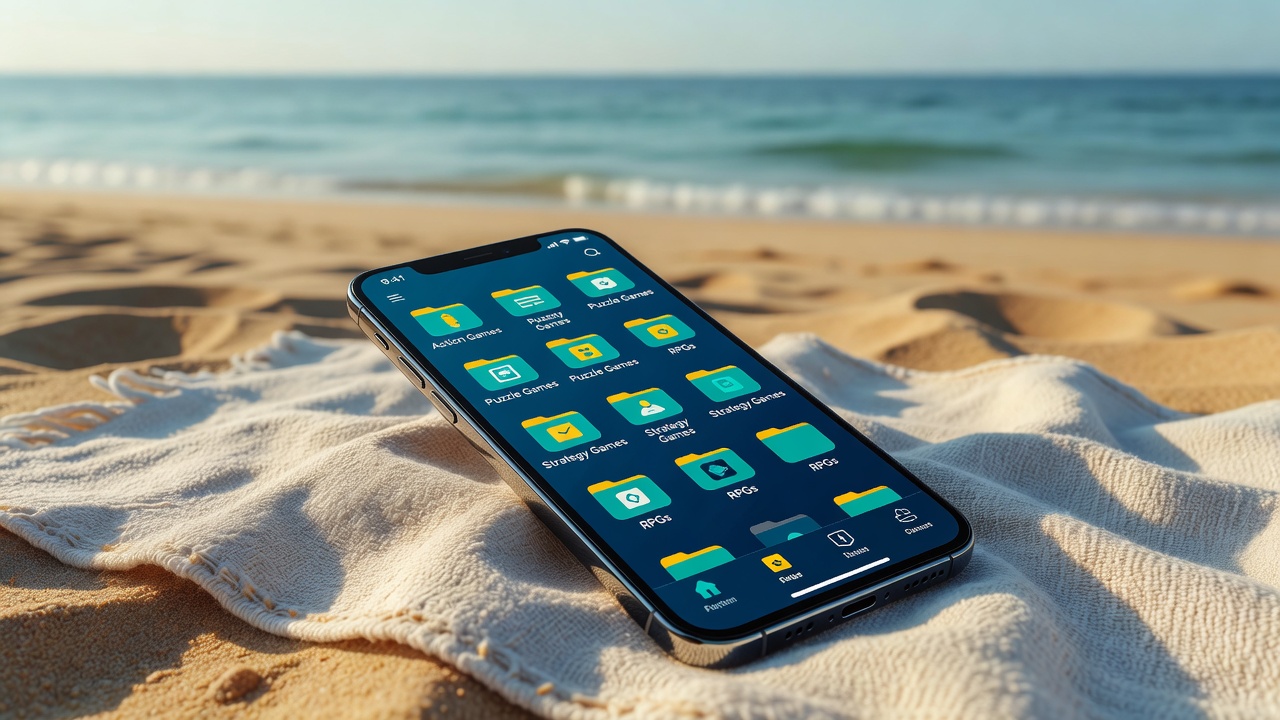
Effective library organization is a core function of any game launcher. Users can typically sort games alphabetically, by genre, by last played, by install date, or by play duration. Advanced launchers support custom folder creation, tagging systems, and star/favorite marking. Some platforms allow users to create themed collections — for example, a "Beach Games" folder or "RPGs" category — making it easy to navigate large game libraries.
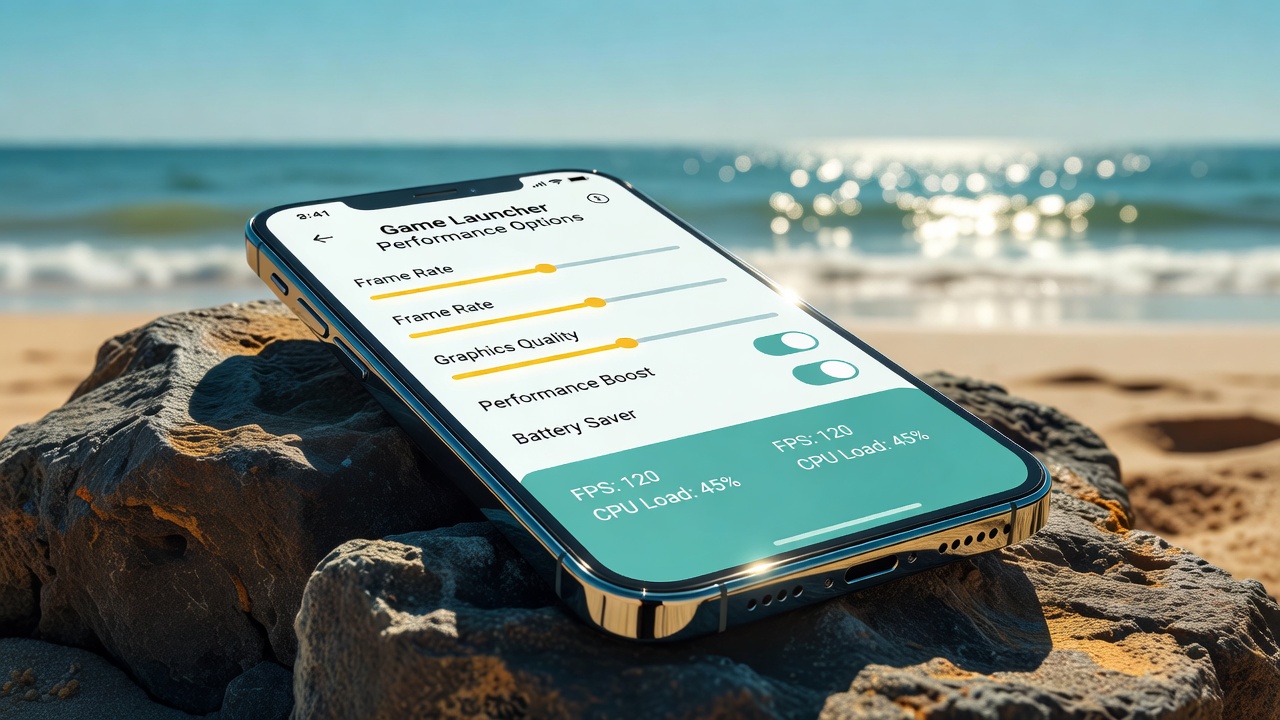
Performance settings within a game launcher help optimize how games run on the device. These settings may include resolution scaling (lowering render resolution to improve frame rate), background app management (automatically closing non-game apps before launching a game), CPU/GPU boost modes, thermal management profiles, and RAM cleanup tools. These features work at the system level to allocate more resources to the active game, improving responsiveness and reducing lag.
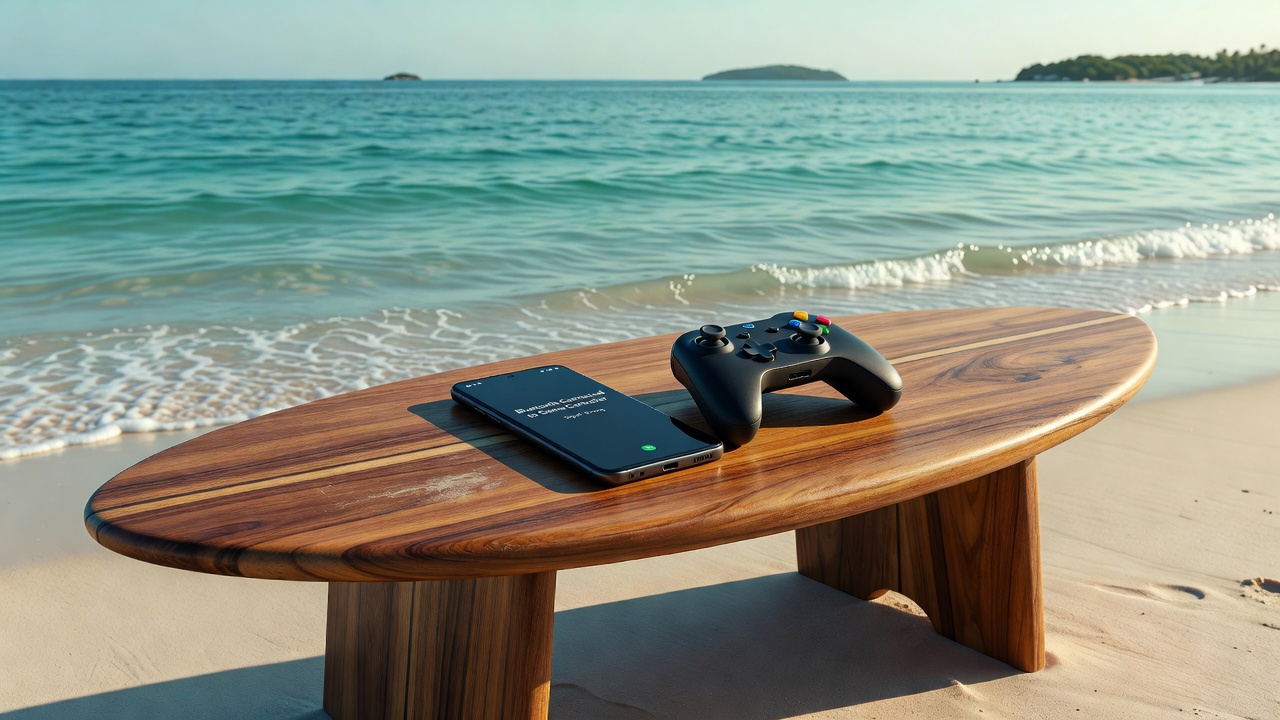
Many game launchers include built-in controller support configuration. This allows users to connect Bluetooth or USB game controllers to their Android device and map physical buttons to on-screen controls. The launcher may provide a controller mapping editor where players can assign actions, adjust dead zones, and set button combos for specific games. Controller profiles can often be saved per game, so settings automatically apply when a specific title is launched.
User profile systems in game launchers allow multiple users on a single device to maintain separate game libraries, settings, and progress tracking. Each profile stores its own preferred game list, theme settings, notification preferences, and performance configurations. On family devices, profiles can also be used to separate a child's game collection from an adult's, enabling parental oversight without affecting the main library.
Game launcher notifications keep users informed about updates, new game releases, promotional events within games, and system alerts. Launchers typically offer granular notification controls, allowing users to enable or disable specific notification types per game. Notification badges on game tiles show pending alerts, while a centralized notification panel within the launcher provides an organized view of all gaming alerts in one place.
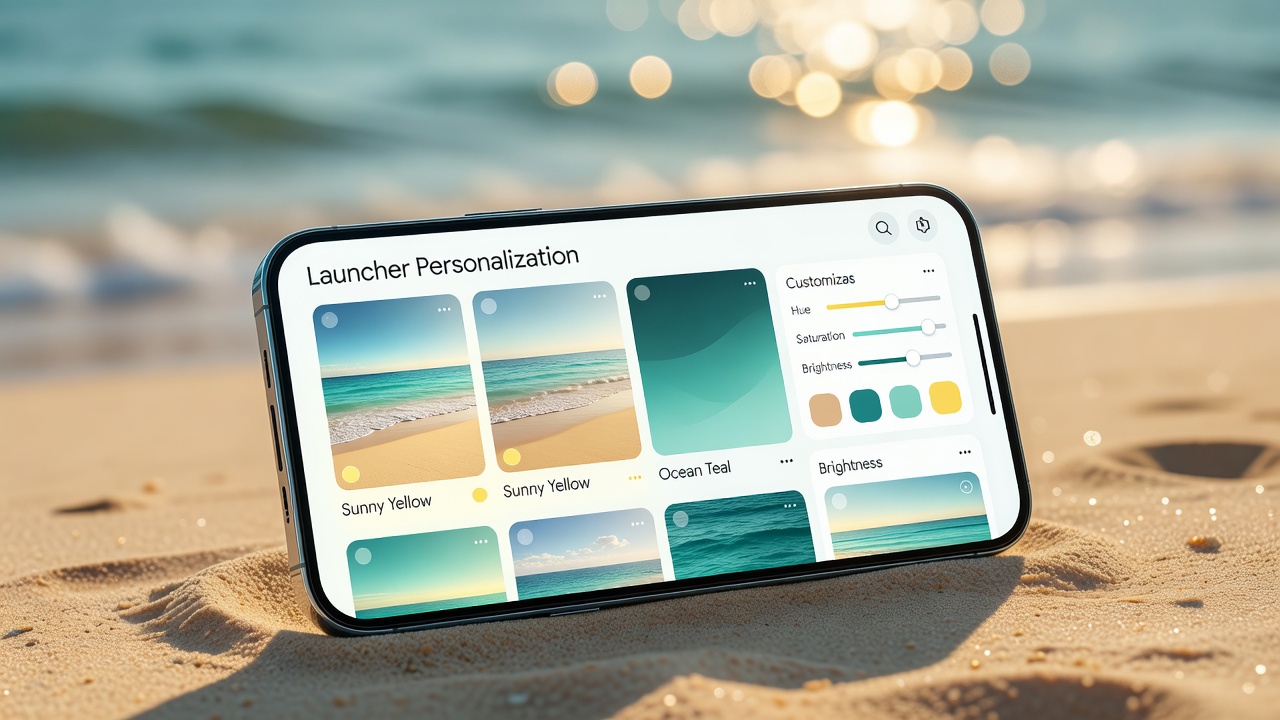
Personalization is a significant selling point for many game launchers. Users can choose from multiple theme packs, change icon sets, customize the home screen grid density, set animated or static wallpapers, and adjust accent colors. Some launchers allow custom banner images for each game, downloaded from official sources. Sound themes, transition animations, and font choices further allow users to make the launcher feel uniquely their own.
Visual Guide
Launcher Features in Practice
Performance Settings Panel
Performance settings panels in game launchers provide toggles for resolution, frame rate targets, CPU allocation, and thermal management profiles to optimize gameplay smoothness.
Bluetooth Controller Integration
Game launchers facilitate seamless Bluetooth controller pairing, button mapping, and per-game profile storage for physical gaming controllers.
Personalization & Themes
Theme libraries within game launchers allow users to customize icon packs, wallpapers, accent colors, and interface animations to reflect personal style.
Library Folder Organization
Custom folder systems let users group games by genre, mood, playtime, or any criteria they choose, making large libraries much easier to navigate.
Note: Game launchers are tools for organizing and accessing games you already own through official, authorized sources. They do not provide free access to paid games, bypass licensing systems, or facilitate unauthorized downloads. Always use official app stores and platforms to obtain games legally.
Comparison
Launcher Types at a Glance
Launcher Type
Primary Function
Best For
Game-Focused Home Launcher
Replaces stock home screen with a gaming interface